The Queue Processor
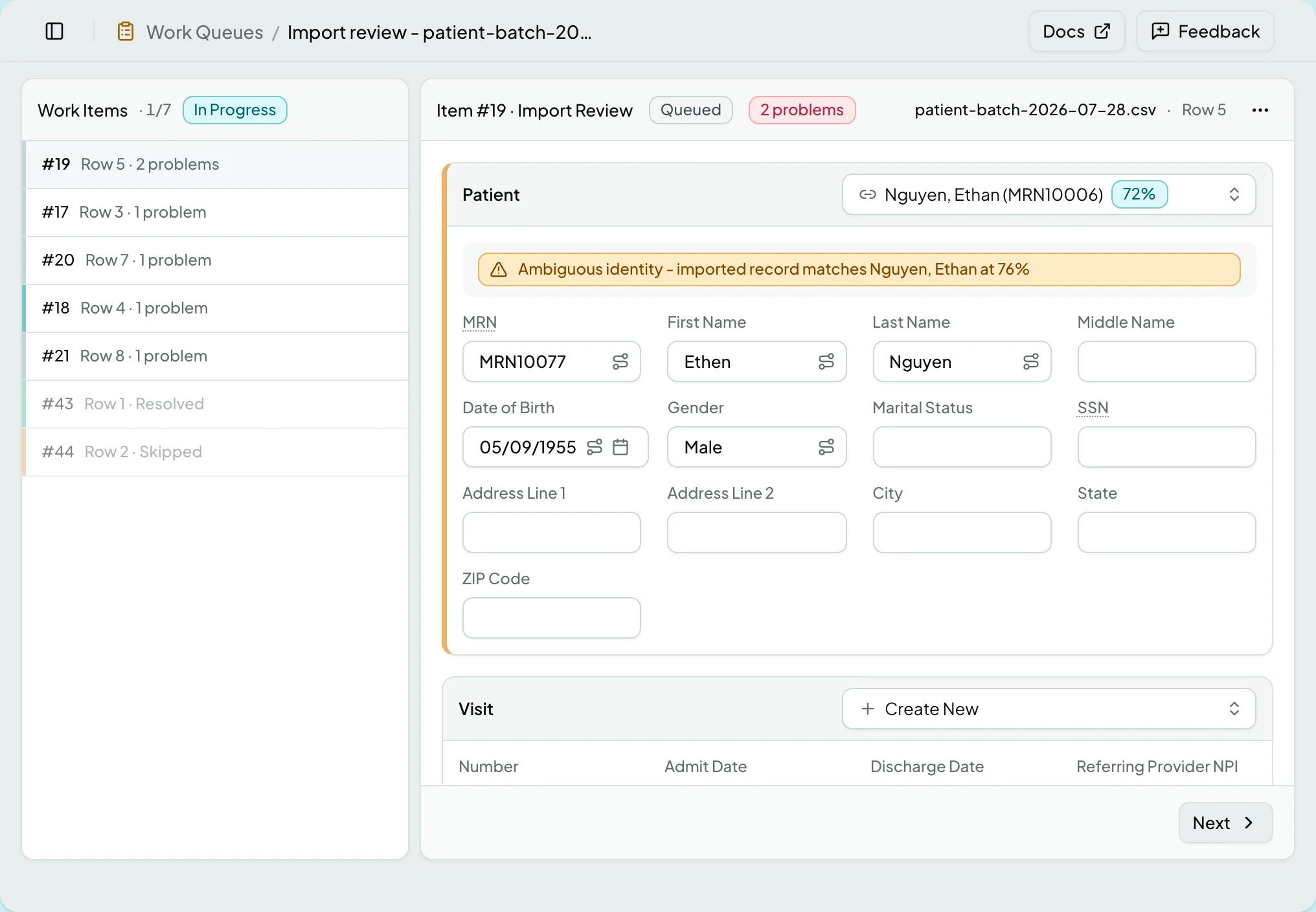
Opening a queue splits the screen: the Work Items rail on the left, the selected item’s workspace on the right. One address serves several kinds of work, so the rail and the action bar stay the same while the workspace changes with the item.
Who Can See It
Section titled “Who Can See It”User, Manager and Administrator, when the client is licensed for work queues.
The Rail
Section titled “The Rail”Every item in the queue, in working order, each summarised by what it is about - an import row and its problem count, a claim number, a payer’s check. Finished items dim rather than disappear, so the queue keeps its shape.
The rail abbreviates: a finished import review row reads Resolved there, where the item’s own status badge says Completed.
| Item state | What it means |
|---|---|
| Queued | Nobody has started it. Opening it does not claim it |
| In Progress | Someone has edited it. It is theirs until they leave it |
| Completed | Closed, and its decisions applied |
| Skipped | Set aside, and still completable later |
When colleagues are in the same queue, the rail shows who is on which item. It is advisory, never a lock - two people can open one item, and the banner below says so if the other one finishes first.
The Action Bar
Section titled “The Action Bar”| Action | What it does | When it appears |
|---|---|---|
| Complete | Validates, closes the item, and advances | In Progress or Skipped, and on a queued follow-up item, which has nothing to edit |
| Release | What the terminal button reads on a Statement Review item: re-runs the statement’s check and, if it passes, releases the statement and advances | Straight away on a Statement Review item, queued or not |
| Skip | Sets the item aside, keeping it completable | In Progress, and on a queued follow-up or Statement Review item |
| Next | Moves on without claiming anything | Always |
Selecting an item does not claim it. Your first edit does, which is why a colleague can read your queue without taking work off you.
The item’s own menu carries Reassign…, Move to Queue…, View History, Show Source or Hide Source, and - where the item points at a record - Open Claim, Open Remittance, Open Visit or Open Statement.
The Workspaces
Section titled “The Workspaces”| Item kind | What the workspace shows |
|---|---|
| Import Review | One staged row, grouped into Patient, Visit, Services and Insurance, with a decision on each part that needs one |
| Claim Review | The claim, with each finding painted on the field it concerns |
| Remittance Review | What the payer reported, the claim it matched, and the posting waiting on your judgement |
| Patient Review | An imported patient held for a decision about identity |
| Follow-up Claims | A submitted claim the payer has not answered, with an Outstanding card giving its balance, when it was submitted and its age, over the remittances received so far |
| Follow-up Visits | A visit that has sat unbilled, with its information and Readiness side by side, so the thing blocking the claim can be fixed here |
| Statement Review | A held statement: its Holds and Bill to cards beside the document canvas, which says held statements do not print |
| Anything else | A generic view naming the work type, for item kinds without a workspace of their own |
Import Review Decisions
Section titled “Import Review Decisions”Each part of the row that ClaimPod could not resolve alone offers a decision.
| Decision | What it does |
|---|---|
| Create New | Makes a record from what the file said |
| Link to Existing | Ties the row to a record already in ClaimPod, naming the match and its confidence |
| Reject Row… | Discards the row, with a reason. Where no reason is required it reads Ignore |
Rejecting is final for that run: the row is skipped and does not enter your data.
Claim and Remittance Review
Section titled “Claim and Remittance Review”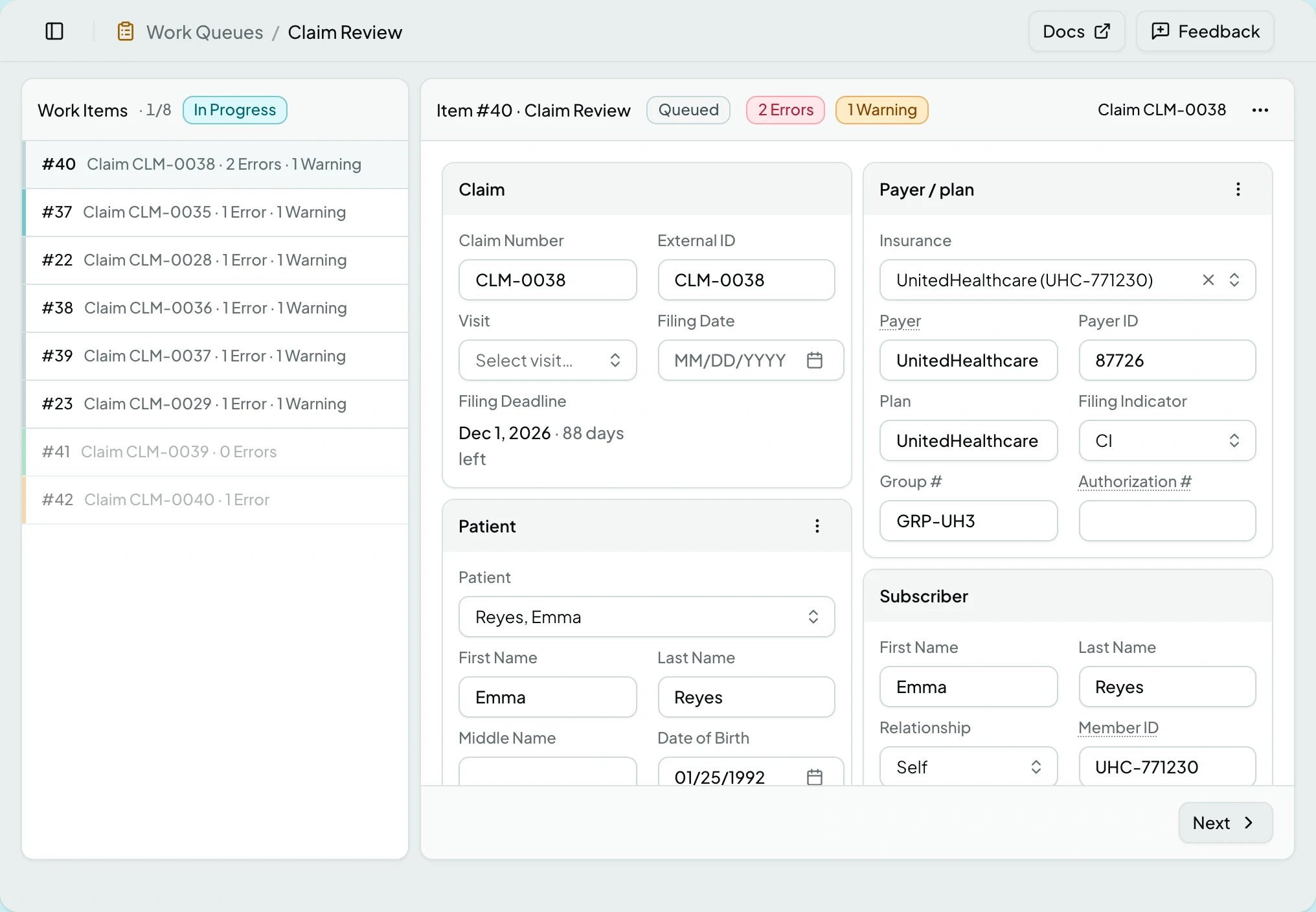
Both open the record itself inside the workspace, so the item is worked where the data lives rather than in a copy of it. A remittance review item will not close without a resolution, and completing either with findings still open asks you to confirm at Complete With Open Findings?.
Follow-up Items
Section titled “Follow-up Items”Follow-up items are not raised by a person. A scheduled sweep looks for
submitted claims the payer has not answered, and for visits that have gone
unbilled, past a threshold in days that the schedule sets. Each item carries the
age it was found at: a badge naming its band, and a line reading
N days outstanding or N days since admit.
The bands are thirty days wide and start at the threshold, so a thirty-day sweep gives 30-59 days, 60-89 days and 90+ days. Older bands sort first, so the queue opens on the work that has waited longest.
There is nothing to decide on a follow-up item, which is why Complete is offered straight away rather than after an edit. Chase the claim or fix the visit, then close it. Leave it open and the next sweep keeps it, updating its age; once the claim is answered or the visit is billed, the sweep closes it for you.
The sweeps are off until someone schedules them, on Tasks and Schedules.
Statement Review
Section titled “Statement Review”A held statement is one decision: mail it or not. The Holds card names each reason, the Bill to card is the one thing you can repair in place, and the terminal button reads Release rather than Complete, because a document leaves the building when you press it. A restriction hold carries a Manage restrictions link to the patient’s Billing Restrictions card; the other holds have nothing to edit here, so Release is offered straight away on a queued item, as with follow-ups.
Release re-runs the statement’s check rather than trusting the holds you saw. A
statement an error still holds is refused with
Resolve N blocking findings before releasing this statement., and the holds
beside the button refresh to match. Where the fix lives for each hold is on
The Statement Page.
States
Section titled “States”- Select a work item to begin processing before anything is chosen.
- The record no longer exists if the claim, remittance or visit behind the item was deleted, with a suggestion to skip and keep the queue moving.
- A recovered draft restores unsaved edits and says it did. Edits save continuously, so losing the tab loses nothing.
- Someone else finished it - a banner says who completed, skipped, reassigned or moved the item, and warns when your unsaved changes did not survive.
- New items arrived offers a refresh rather than moving the rail under you.
- This statement was already released or already voided - someone decided a Statement Review item while you were reading it, and the workspace says so rather than failing.
- Empty - a queue with nothing open shows its progress complete.
- Blocked - without the work queues module the screen is not in the sidebar, and a saved link to it says the module is not part of your plan.
Related: Work Queues · Work a Queue Item · Review an Import Row · Work a Claim Review Item · Work a Remittance Review Item · Bill Patients for What They Owe