Getting Started
This walks you through one complete piece of work: signing in, finding your queue, and resolving a single import review item. It takes about ten minutes, and everything you do here is what a normal day looks like.
Sign In and Pick a Client
Section titled “Sign In and Pick a Client”-
Open ClaimPod and sign in with your work email. Depending on how your organization is set up, you either enter a password or continue through your Microsoft account.
-
At the top of the sidebar, check which client is selected. Everything you see is scoped to that client. If you only have access to one, it is chosen for you.
-
Optional: select the switcher to change clients.
Open Your Queue
Section titled “Open Your Queue”-
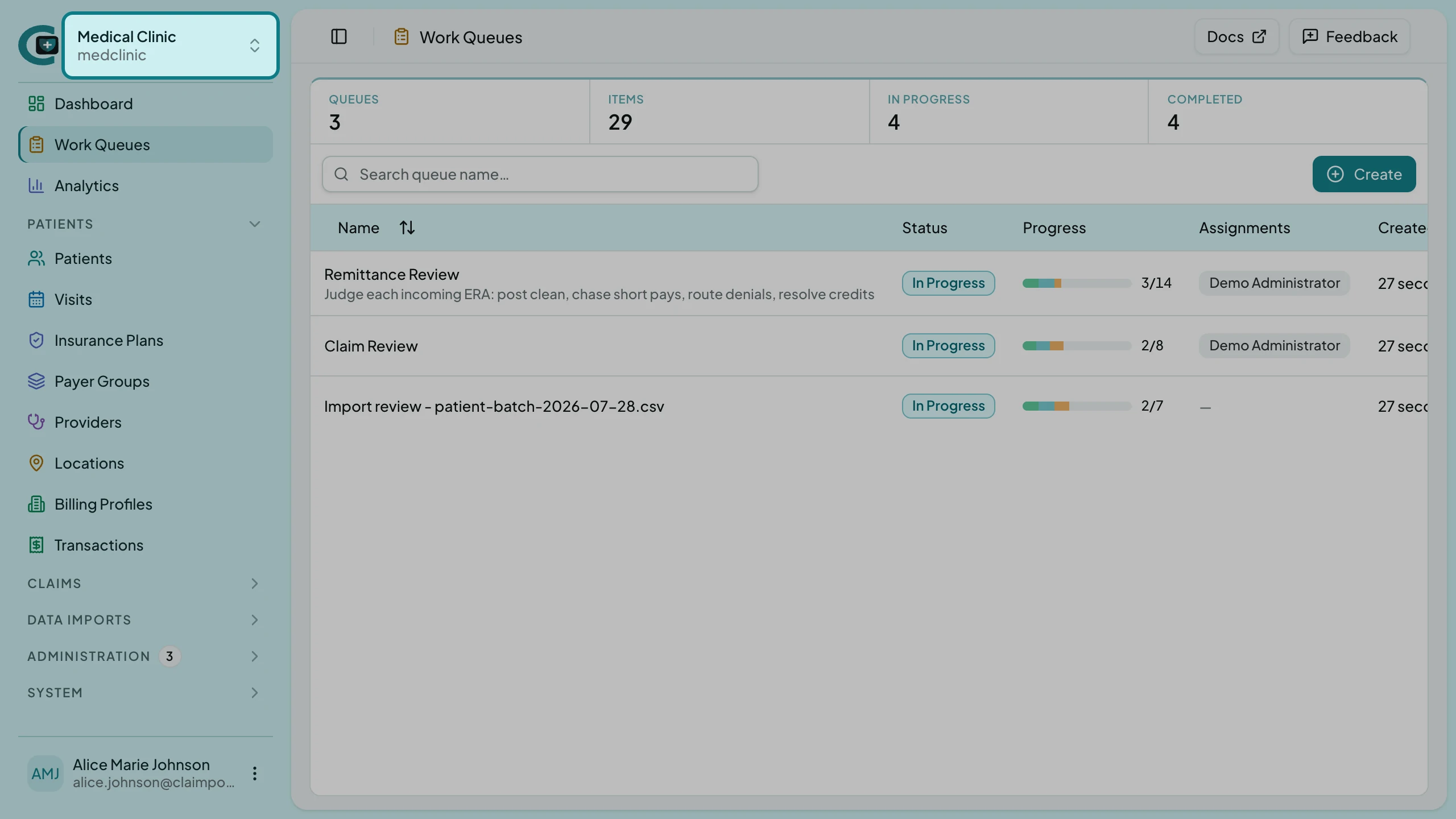
In the sidebar, select Work Queues. The list shows every open queue with its progress, who it is assigned to, and when it was created.
-
Select the queue you are working. Import review queues are named after the file they came from, so a queue called
Import review - patient-batch-2026-07-28.csvholds the rows from that one import.
The queue opens on the processor: the Work Items rail on the left, and the selected item’s workspace filling the rest.
Work the Item
Section titled “Work the Item”Each item in the rail carries its row number and how many problems it has, so #19 Row 5 · 2 problems is the fifth row of the file with two things to decide.
-
Select an item in the rail. The workspace shows the row grouped into Patient, Visit and Services, with the file name and row number above it.
-
Read the problem at the top of the section that has one. An import review problem always names what ClaimPod could not decide on its own, such as an imported record matching an existing patient closely but not exactly.
-
Make the decision the row is waiting on. Each field carries its own decision: link the row to the existing record, create a new one, or reject the row with a reason.
-
Edit any field the file got wrong. Your first edit claims the item and moves it to In Progress. Until then the item is only open for viewing, so browsing a colleague’s queue never takes their work.
-
Select Complete. Completion checks the item first. If something still blocks it, ClaimPod says what and stays where it is.
Result: the row promotes into real patients and visits, the item moves to Completed, and the processor advances to the next item in the rail.
What to Read Next
Section titled “What to Read Next”- Work a Queue Item covers skipping, drafts and reassignment.
- Roles and Access explains why an administrator cannot open a patient.
- Clients explains what the switcher actually changes.