Work a Queue Item
Work queues hold everything needing a human decision: rows stopped at import review, claims a rule flagged, remittances that did not post cleanly. This is the loop you spend the day in.
Process an Item
Section titled “Process an Item”- In the sidebar, select Work Queues.
- Open a queue.
- Select an item in the Work Items rail.
Its label carries the row or record and the problem count, so
#19 Row 5 · 2 problemshas two things to decide. - Resolve what the item asks for in the workspace.
- Select Complete. Completion validates first. If something still blocks the item, ClaimPod names it and stays put.
Result: the item closes and the processor advances to the next one in the rail.
Selecting an Item Does Not Claim It
Section titled “Selecting an Item Does Not Claim It”Opening an item shows it for viewing only. It stays Queued, and the action bar offers Next alone:
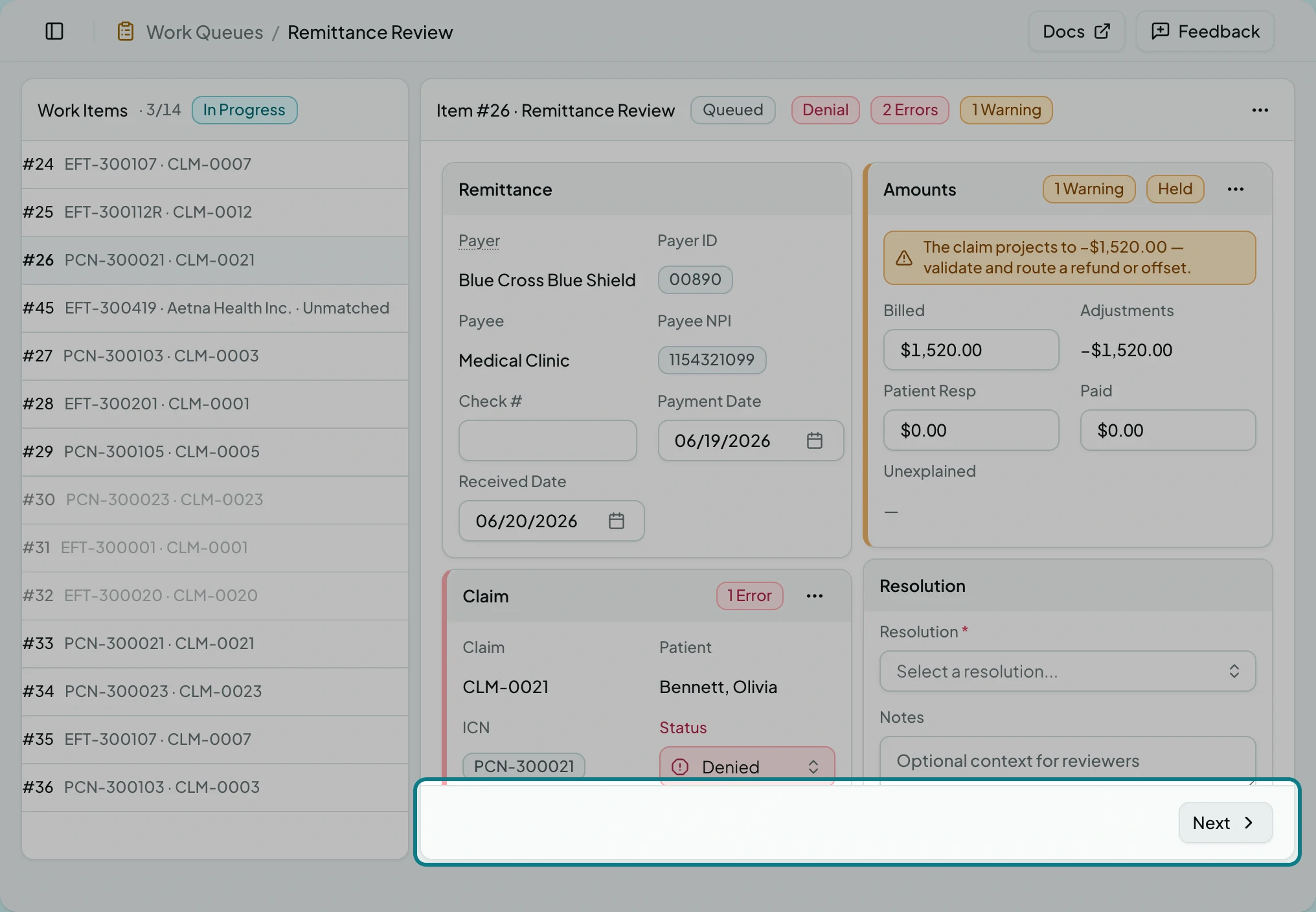
Your first edit claims it. The item becomes In Progress, and Skip and Complete appear beside Next. That is why a colleague can read your queue without taking work off you.
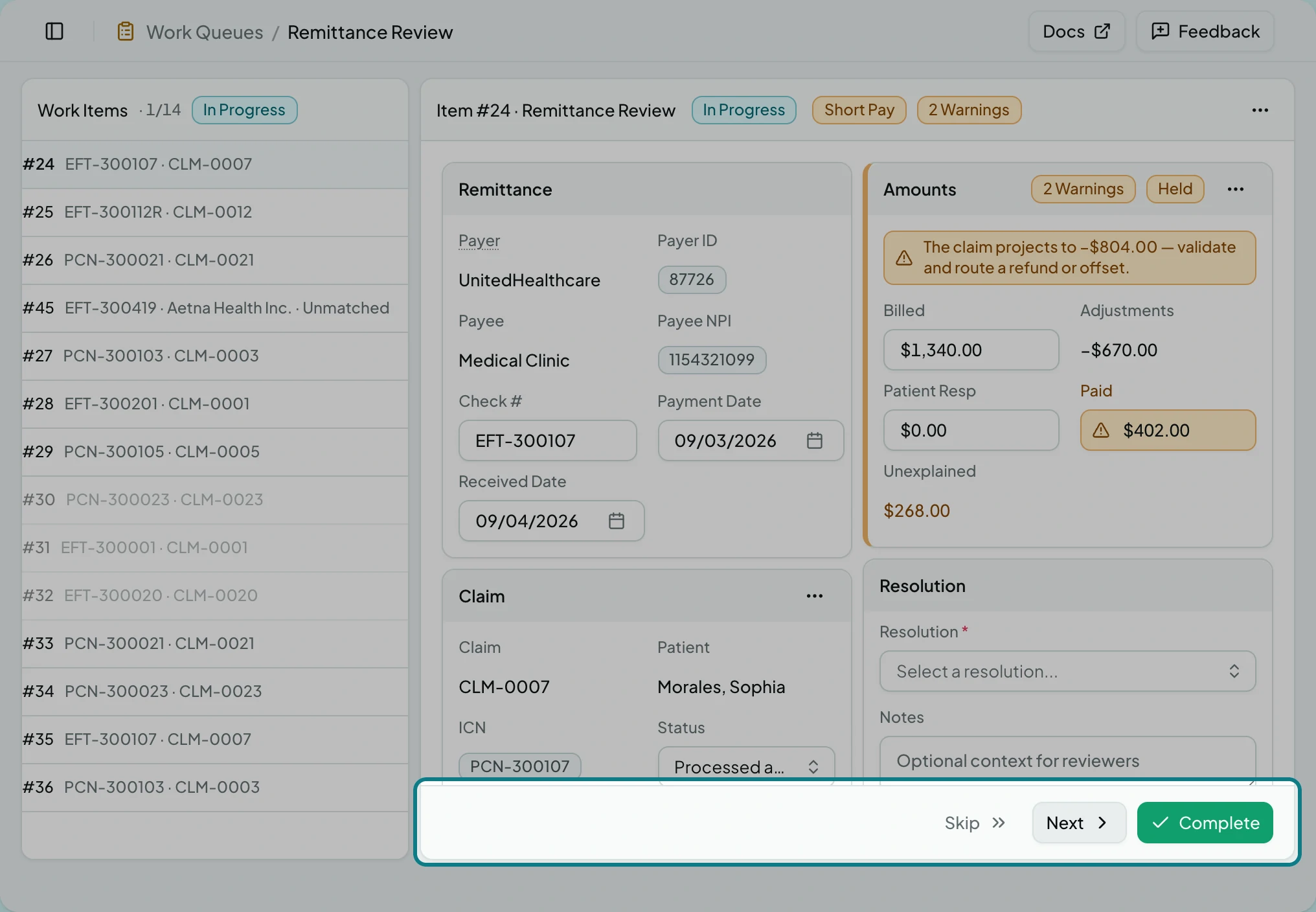
Skip sets an In Progress item aside without closing it; some queues require a reason. A skipped item keeps its Complete button, so coming back later does not mean starting over. Edits save as a draft continuously, so losing the tab or closing the laptop loses nothing. Work Queues lists every state and action.
Related: The Queue Processor · Work Queues · Work a Claim Review Item · An Import or Queue Is Stuck