Connections
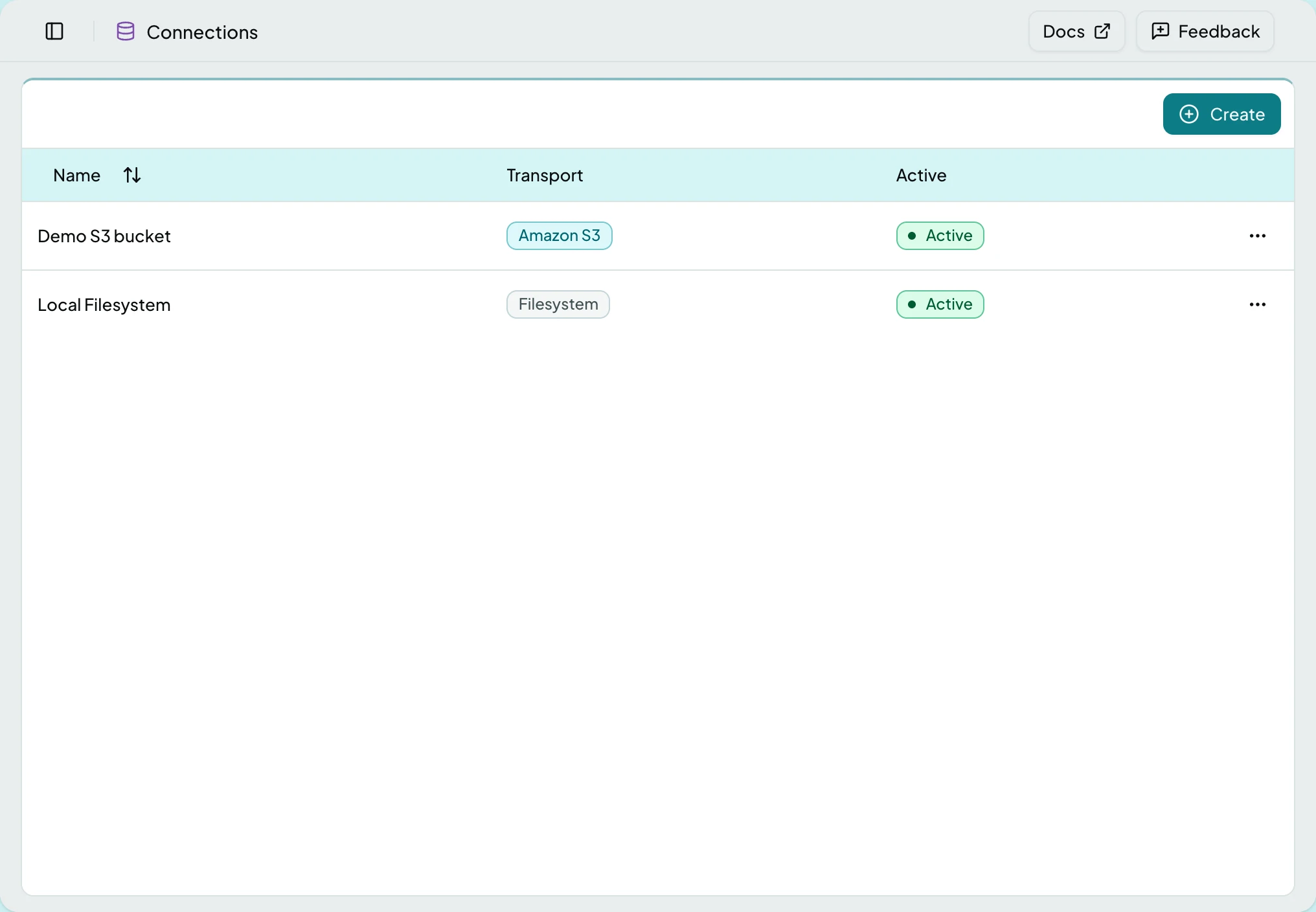
Where files arrive from: a folder, an SFTP drop, or an S3 bucket. A schedule points at a connection, so this is what a recurring import actually reads.
Who Can See It
Section titled “Who Can See It”Administrator only, when the client is licensed for connections.
The List
Section titled “The List”| Column | What it shows |
|---|---|
| Name | The connection |
| Transport | Filesystem, SFTP or Amazon S3 |
| Active | Whether schedules may use it |
A connection can take named files or match by wildcard, evaluated at run time so new filenames keep working. Credentials are stored encrypted and are not shown back after saving.
Browsing a Source
Section titled “Browsing a Source”Browse Files lists what is on the source right now, so you can pick specific files rather than waiting for a schedule. Each file shows where it stands: New, Imported, Changed, Partial, Failed, or Importing… while one is in flight. It is also the quickest way to tell a connection problem from an empty folder.
Actions
Section titled “Actions”| Action | What it does | When it is greyed |
|---|---|---|
| Test connection | Confirms ClaimPod can reach the source and reports how many files it sees | Until the transport and its credentials are filled in |
| Browse Files | Lists what is there now | Until the connection tests clean |
| Create / Edit / Delete | Manage the connection | Delete is refused while a schedule still uses it |
States
Section titled “States”- Empty - a client with no connections says so and offers Create.
- Blocked - without the connections module the screen is not in the sidebar, and a saved link to it says the module is not part of your plan.
Related: Import Mappings · Imports · Set Up a Connection