Import Batches
How data enters ClaimPod. Every file that arrives becomes an import batch,
numbered IMB- and listed on the Import Batches tab of Batches.
Who Can See It
Section titled “Who Can See It”User and Administrator see import batches and mapping templates. Crosswalks and connections are Administrator only.
Connections and mapping templates have their own pages - Connections and Import Mappings. This page is the import batches themselves.
Import Batches
Section titled “Import Batches”Each file that arrives becomes an import batch. Rows are staged and validated before anything touches live data. Clean rows flow through; problem rows stop at import review as work items. Some problems hold only part of a row:
- A service with no price on the fee schedule flows through unpriced and also gets an import review item, so someone enters its charge.
- An unknown CPT or ICD-10 code holds only that service or diagnosis, while the patient and visit import.
- A row that would create a visit without an admit date waits in Import Review. When a later import brings the visit with its date, the row imports itself and its review item completes.
The Batch Page
Section titled “The Batch Page”Opening an import batch shows what happened to the file.
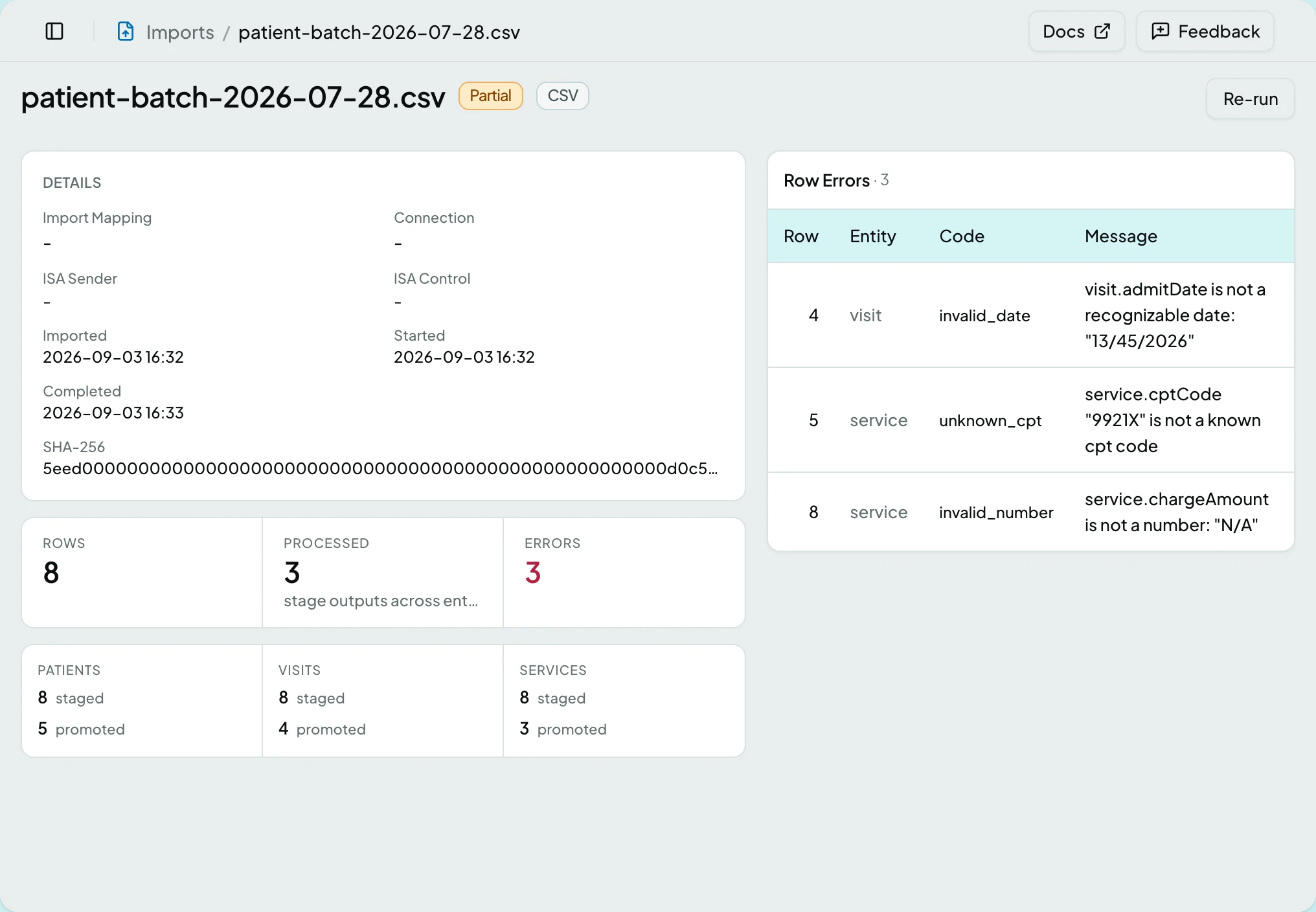
| Section | What it holds |
|---|---|
| Details | The file itself: its Import Mapping, the Connection it came from, EDI control numbers where it was EDI, and its SHA-256 checksum with a copy button. Once a retention window has passed, it also says when the uploaded file or the staged rows were purged |
| Stages | The pipeline the file went through, each stage with what went in, what came out, how many were rejected, and how long it took. A stage with nothing in or out shows a grey dot |
| Row Errors | Every message the run logged, with its Row, Entity, Problem and Message. Rows count from 1; a file-level error has no row number. Notices that did not block a row are listed too |
| Payments | Only on a file that carried payments: each payment’s Row, Patient, Paid, Applied, Credit and Outcome |
| Duplicates | Where the file repeated something already imported, naming what it matched |
Above the sections sit the tiles Rows, Processed, Duplicates, Held and Errors. Held counts the rows waiting in Import Review and appears only when there are any. Errors carries a Needs Review badge while any row has a problem, including a notice such as $0.00 Charge or No Diagnosis, or the number of messages when a row carried more than one. Beneath them each entity shows how many were staged and how many promoted, and how many were skipped as duplicates.
A duplicate is not an error. The file carried something ClaimPod already has - a remittance sent twice, most often - so the row was recognised and skipped rather than posted a second time. The Duplicates tile and section only appear when there were any.
Problems
Section titled “Problems”The Problem column names what stopped or flagged the row:
| Problem labels |
|---|
| Unconfirmed Patient Identity, Import Failed, Invalid Date, Invalid Number, Value Not Allowed, Mapping Failed, No Diagnosis |
| Record Not Created, Missing Required Field, Character Replaced, Transfer After Billing, Unmapped Code, Unknown CPT, Unknown ICD-10 |
| Unknown Payer, Unknown Place of Service, Unpriced Service, Unsupported Event, Visit on Another Chart, X12 Version Mismatch, $0.00 Charge |
Payment Outcomes
Section titled “Payment Outcomes”| Outcome | Meaning |
|---|---|
| Posted | The payment posted. A credit adds “credit due back by” and the date |
| Posted to account | The payment went onto the patient’s account as a credit, with the date it is due back |
| Already posted | The payment was imported before, so it was not posted again |
| Held for patient review | The patient match waits for a person to confirm it in Import Review |
| Not posted | The row failed and nothing posted |
| Pending | The row has not been processed yet |
Actions
Section titled “Actions”| Action | What it does | Who sees it |
|---|---|---|
| Upload File | Opens Upload Import File to load a file by hand, from the Import Batches tab | Administrator only. Missing for anyone else |
| Open | Opens the import batch | Anyone who can reach Import Batches |
| Re-run | Re-stages and re-promotes the file, superseding the earlier run. In the run’s row menu and as a button in the run page header | Administrator only, and only on a run that reads Failed or Needs Review and whose uploaded file has not been purged. Refused while the import is still queued or running |
| View History | Shows every change made to the run, from the Import actions menu in its header | Anyone who can read patient data: a User or a Superadmin |
A User never sees Re-run. If a run needs repeating, ask an administrator.
Once the uploaded file is purged, Re-run is not shown to anyone, because there is nothing left to re-read. Upload the file again to repeat the import.
Retention
Section titled “Retention”An import holds patient data twice over: the file you uploaded, and the rows staged from it. Both are purged once they are past use, on separate clocks.
| What | Purged after | What remains |
|---|---|---|
| The uploaded file | 180 days by default | The run, its counts and its row errors |
| Staged rows and the file’s original text | 1 year by default | The same. A row can still be opened, but its original text is no longer shown |
An administrator can change both windows on the client’s Settings tab. Nothing is purged until an administrator schedules Purge Import Data on Tasks. Until then every upload is kept indefinitely, and the Import Batches tab says so to administrators. A purged run says when it was purged on its own page.
States
Section titled “States”- Empty - a client with no imports reads “No import batches yet. Upload a file to get started.”
- No row errors on a run that imported cleanly says no row errors and that all of its rows imported cleanly. When the file repeated records, it says how many were already imported and not posted again.
- Row errors hidden - an administrator without the User role reads “Reading row errors needs the User role, because a message can quote the patient value it rejected.” The Payments section is hidden the same way, because each row names the patient who paid.
- Blocked - without the imports module the Import Batches tab is not shown, and a saved link to a batch says the module is not part of your plan.
- No purge scheduled - an administrator sees “No import purge is scheduled, so uploaded files and staged patient rows are kept indefinitely.” on the Import Batches tab, with Schedule one leading to Schedules.
If a source suddenly rejects everything, see An Import or Queue Is Stuck.
Related: Connections · Import Mappings · Upload an Import File · Review an Import Row · The Claim Loop