Fee Schedule
The prices this practice charges, in dated versions. The version in effect on a service’s date sets its charge, so a service that arrives without one is priced from here. It is what the practice charges, not what a payer has agreed to pay.
Who Can See It
Section titled “Who Can See It”Administrator only, once a client is selected. It is the Fee Schedule tab of Pricing, under Setup in the sidebar. No licensed module is needed.
The List
Section titled “The List”| Column | What it shows |
|---|---|
| Name | The version |
| Status | Where it stands in time, below |
| Effective | The first day it prices, through the day before the next version starts, or “ongoing” |
| Prices | How many prices it holds |
| Updated | When it last changed |
| Status | What it means |
|---|---|
| Upcoming | Its start date has not arrived. Nothing is priced from it yet |
| Current | The version pricing services dated from its start onward |
| Past | A later version has taken over. It still prices services dated inside its own range |
The Version Page
Section titled “The Version Page”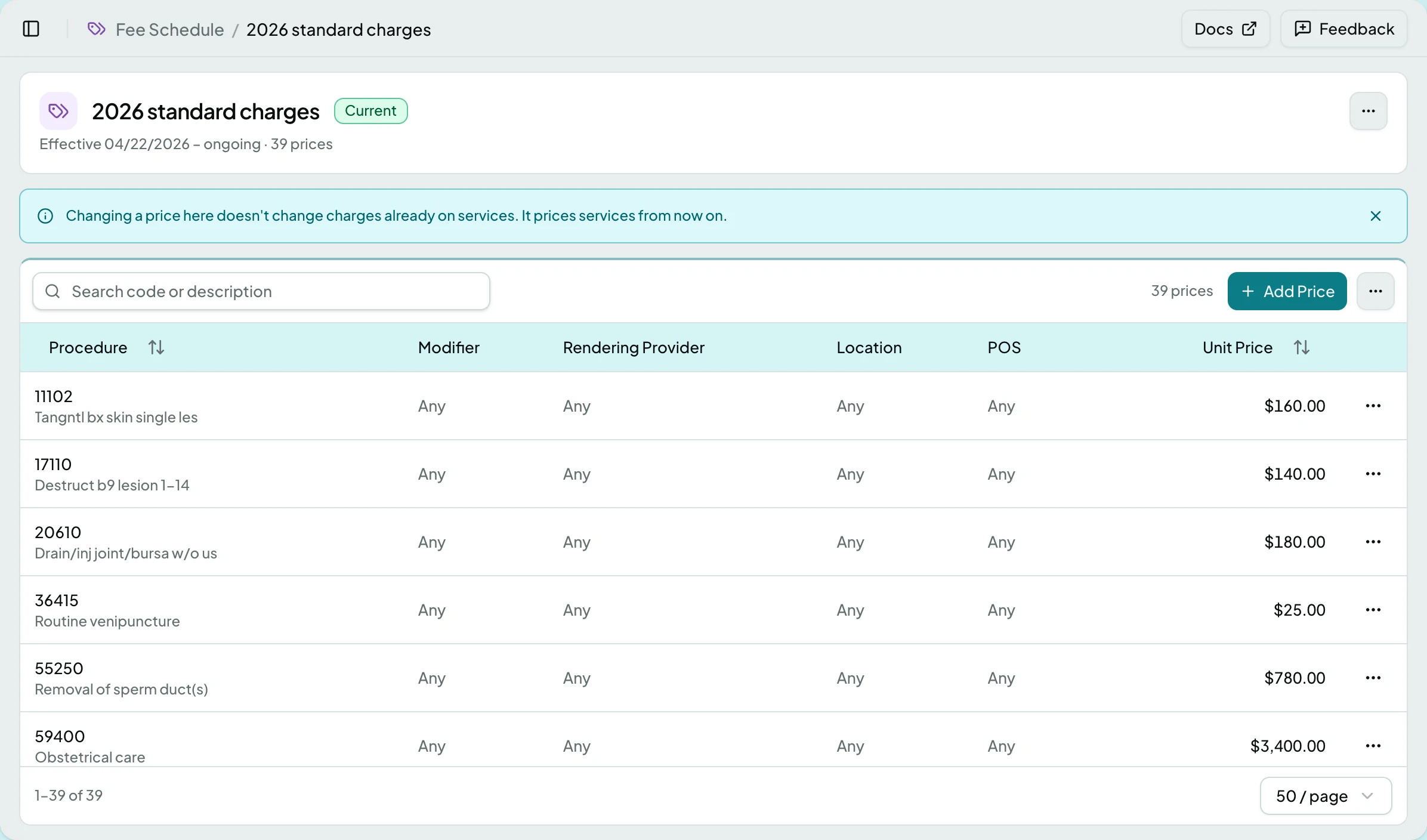
Opening a version shows its status, its effective range and its price count above the price table. Search code or description narrows the table. The table’s toolbar holds Add Price and the Table actions menu, with a chip while a bulk run on these prices is in progress.
| Column | What it shows |
|---|---|
| Procedure | The procedure code and its description |
| Modifier | The modifier the price is for, or Any |
| Rendering Provider | The provider the price is for, or Any |
| Location | The location the price is for, or Any |
| POS | The place of service the price is for, or Any |
| Unit Price | The price per unit |
A blank qualifier reads Any and matches every value. When several prices match a service, the most specific one wins.
On the Current version a notice says that changing a price does not change charges already on services, only services priced from now on, until you dismiss it. A Past version says which dates it prices, and that a change there reaches only services in that range that are not priced yet.
Actions
Section titled “Actions”| Action | What it does | When it is offered |
|---|---|---|
| New Version | Opens Create Version, starting from the Current version where there is one | On the list, always |
| Open | Opens the version page | Row menu, or select the row |
| Copy to New Version | Opens Create Version, starting from this version | Row menu, and Version actions on the version page |
| Delete | Deletes the version and its prices | Row menu, on an Upcoming version only; missing otherwise |
| Add Price | Opens Create Price | On the version page, in the price table’s toolbar |
| Export… | Opens the export of this version’s prices as CSV or Excel. It exports the whole version, not only the search results | In Table actions on the version page. Greyed with “There are no prices to export.” on an empty version |
| Import… | Imports prices from a CSV file into this version, below | In Table actions on the version page |
| Edit | Opens Edit Price for that row | Row menu of the price table |
| Delete | Deletes that price. Services already priced keep their charge; later ones use the next best matching price, or wait for one | Row menu of the price table |
| Edit Version | Changes the name, and the start date while the version is Upcoming | Version actions |
| Delete Version | Deletes the version and its prices | Version actions, on an Upcoming version only; missing otherwise |
Create Version asks for:
| Field | What it takes |
|---|---|
| Name | Required, up to 100 characters |
| Effective From | Required. Services dated on or after this day use these prices until the next version starts |
| Start From | A version to copy, showing its status and price count, or Empty schedule |
| Change Prices By (%) | Applied to every copied price and rounded to the cent, from -90 to 500 with at most two decimals. Use -3 for a 3% decrease |
Create Price and Edit Price ask for Procedure Code and Unit Price, both required, then the Applies To qualifiers: Modifier, Rendering Provider, Location and Place of Service, each Any when left blank. A unit price runs from 0, for a no-charge code, up to $9,999,999,999.99. Saving a price prices the services that were waiting for it, and the confirmation says how many.
Once a version has taken effect, Edit Version shows its start date without letting you change it: create a new version instead.
If someone else changed the version or the price after you opened Edit Version or Edit Price, your save is refused with a notice above the form, and Reload refills it with their version (A Save Was Refused). Changing a price also changes its version, so a version edit opened before a price change is refused too. If the price was deleted meanwhile, Reload says so and asks you to close the dialog.
Import Prices
Section titled “Import Prices”Import… takes a CSV with the columns Code, Modifier, Provider NPI, Location, POS and Unit Price. The first five identify the price, and a blank one means Any; a location is matched by its code or its name. You review what the file would add and change before it is applied, and the import then runs as a tracked run under Update Batches. Applying it prices the services that were waiting for a price, and the run says how many.
States
Section titled “States”- Empty - with no version yet the list says “No fee schedule yet.” and points at New Version.
- No prices in this version yet. on a version with an empty table.
- Couldn’t load the fee schedule. or Couldn’t load these prices. when the list or the table cannot be fetched, with a retry.
- Blocked - anyone without the Administrator role is told the screen needs it.
Related: Visits · Review an Import Row · Generate a Claim